
How to Install GPL Theme or Plugin Premium

How to Install GPL Theme or Plugin Premium

Welcome to GPLGood! If you’re looking to install a premium WordPress theme or plugin you’ve downloaded from our site, you’re in the right place. This step-by-step guide is designed for users of all skill levels, from beginners to advanced developers.

Before You Begin: Crucial Precautions
  1. Always Backup First: Before installing any new theme or plugin, create a complete backup of your website (files and database). Use a reliable backup plugin like UpdraftPlus or BlogVault.
  2. Use a Staging Site: For maximum safety, test the installation on a staging site (a clone of your live site) first. Most hosting providers offer a staging tool.
  3. Deactivate Caching: Temporarily deactivate any caching plugins (like W3 Total Cache, WP Rocket) during installation to avoid conflicts.
 

The Standard WordPress Upload (Recommended for Most Users)

This is the easiest and most common method, done directly from your WordPress dashboard.

Step 1: Download the ZIP File

After purchasing from GPLGood, download the product file to your computer. It will be a .zip file (e.g., astra-pro.zip). Do not extract this ZIP file on your computer.

NOTE: If the file ends in “pack” or “package”, eg; “themename-1.2.3-pack.zip”, they must be unzipped or extracted first. To unzip, you can use software like 7-zip or WinRAR.

Step 2: Navigate to Your WordPress Dashboard

Log in to your WordPress admin panel (yourdomain.com/wp-admin).

Step 3: Go to the Installation Section

For a Theme: Go to Appearance > Themes. Click “Add New” at the top, then click “Upload Theme.”
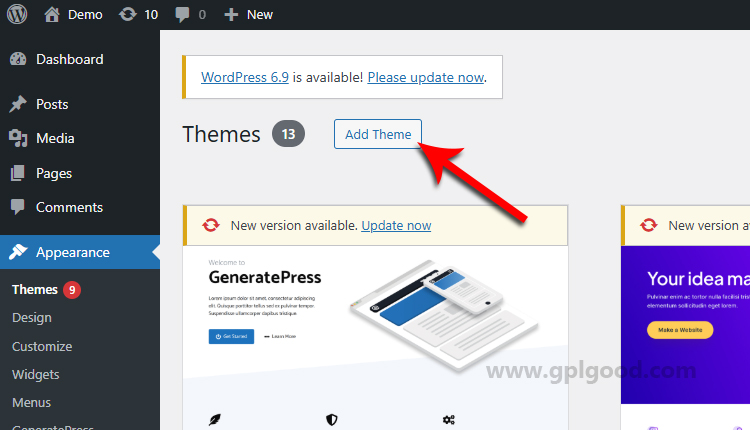
Uploading a WordPress theme

For a Plugin: Go to Plugins > Add New. Click the “Upload Plugin” button at the top.
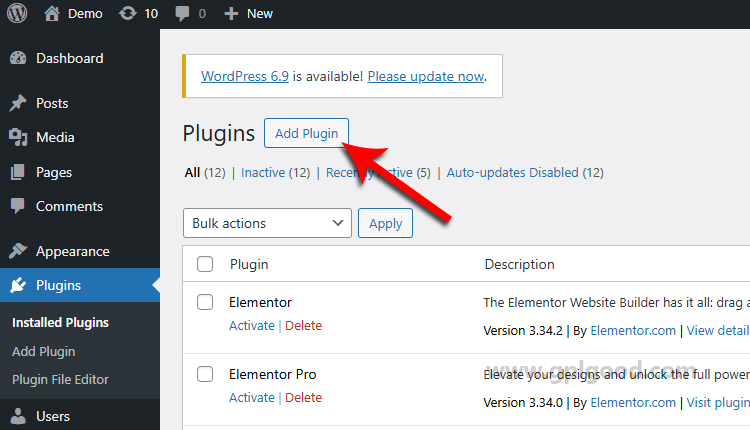
Step 4: Upload and Install

Click “Choose File” or “Browse,” then select the downloaded .zip file from your computer.

Click “Install Now.” WordPress will upload and unpack the files.

Step 5: Activate

After a successful installation, you will see a confirmation message.

Click the “Activate” button (for themes) or “Activate Plugin” button.

Step 6: Enter the License Key (If Applicable)

Some products may require a license key, but some products are already activated (Pre-Activated). Please note that the license keys we provide are GPL license keys, not official license keys. The keys we provide are only to unlock premium features, not for automatic updates.

To find out the license key information for a product you purchased, you need to log in to our website, then go to Downloads, and click “License details” for that product.
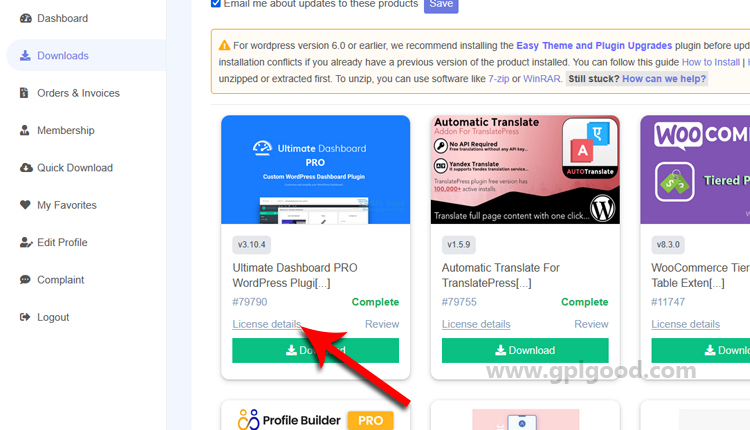
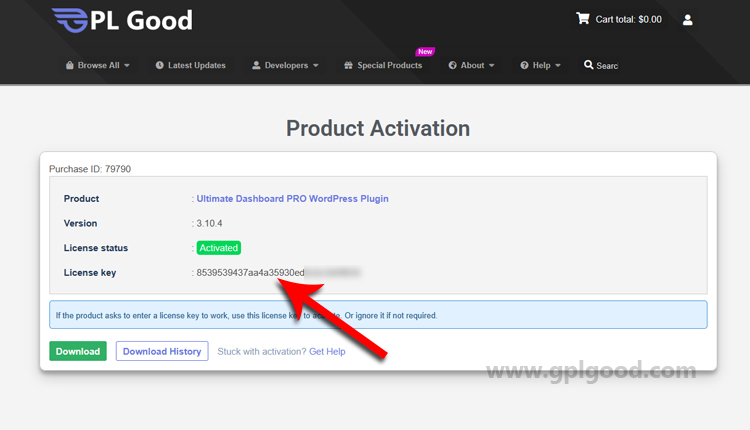
If you are a paid member such as Basic, Gold, Premium, or Lifetime, you can find the license key information for a product directly on the product’s single page in the description section.
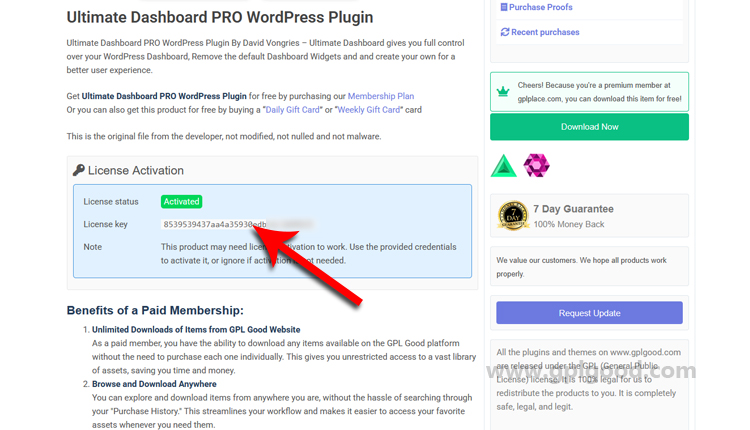
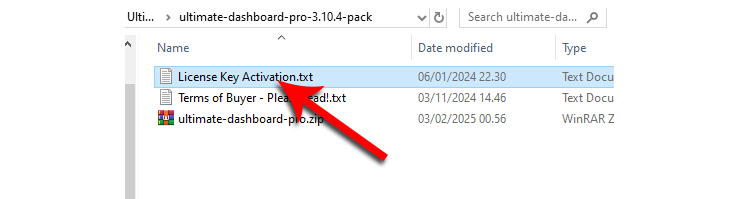
We also include it in the download package files. You need to extract the files first, then look in the Activation section, for example, a file named “License Key Activation.txt”.
If you cannot find any information regarding a license key, simply ignore it as you do not need to do anything related to activating with a license key.

Go to the plugin’s or theme’s settings page (often found under Settings or a dedicated menu item).

Look for a “License” or “Activation” tab.
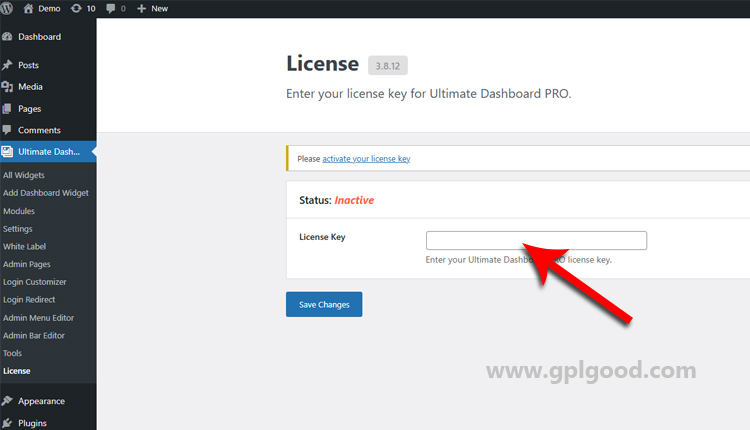
Leave this field blank or enter a dummy key (like 12345). The GPL code is fully functional without a valid key from the original developer.

To get direct updates, you would need a genuine key from the author. With GPL products, you typically update by downloading the new version from your GPLGood account and repeating this upload process.

Do you have an error when installing?
  1. It is very important that you do not forget that some products (for example those of Themeforest and Codecanyon) in many occasions come in a double compression, that is to say, a zip file inside another zip.

    Check your product when downloading BEFORE INSTALLING to see if this is the case because if it is, the main zip you downloaded will not be the installable one, which will lead you to installation errors like the one in the CSS stylesheet for example.

    If you upload the main zip and receive an error, it is most likely because the main zip is not the installable one. Unzip the main zip and you will find the installable zip inside.

  2. Remember that the Plugins, Extensions and Addons are always uploaded in the Plugins area. And the themes always in the Appearance area.
  3. You MUST make sure that your WordPress installation meets the minimum requirements suggested in our Q&A section, which are as follows

    Before purchasing a memberplan, or individual product on the gplgood.com, make sure your hosting meets the following minimum requirements for WordPress:

    Apache or NGINX based web server with 128MB of RAM
    PHP version 5.6 or 7.0
    MySQL version 5.6+ or MariaDB version 10.0+
    Apache Module mod_rewrite

  4. To avoid errors during product installation, make sure you are using the correct PHP settings on your web server:

    max_execution_time = 600;
    max_input_vars = 5000;
    memory_limit = 256M;
    post_max_size = 128M;
    upload_max_filesize = 128M;

  5. For themes with a weight of more than 200 megabytes (which include the different templates) it is necessary that you make your upload through FTP.

Download file not found

Download file not found, or maybe the product type is not downloaded such as coupon, gift card, Member etc.

Weekly Card

Terms and Conditions

Weekly Card

  • By purchasing this card, you can download any file on GPL Good for free up to 15 downloads.
  • The number of downloads is calculated per click when you click the download button.
  • This card is valid for 7 day from the date of purchase.
  • When your card expires, you cannot download any files. You will see the “Download” button become “Purchase”.
  • Refund only applies to: When all the files you download don’t work (not one or several files). You should read the Refund Policy.

Plugin/Theme Latest Update:

You can download the latest updates directly from the product page. You can only download as long as the Weekly Card is still active. When your Weekly Card expires, you cannot download any files. You also can’t download the latest version.

Exception:

You can download any product, except:

*By purchasing this Weekly Card, you agree to these terms, Terms and Conditions, and Refund Policy. Need help? please contact us.

Daily Card

Terms and Conditions

Daily Card

  • By purchasing this card, you can download any file on GPL Good for free up to 5 downloads.
  • The number of downloads is calculated per click when you click the download button.
  • This card is valid for 1 day from the date of purchase.
  • When your card expires, you cannot download any files. You will see the “Download” button become “Purchase”.
  • Refund only applies to: When all the files you download don’t work (not one or several files). You should read the Refund Policy.

Plugin/Theme Latest Update:

You can download the latest updates directly from the product page. You can only download as long as the Daily Card is still active. When your Daily Card expires, you cannot download any files. You also can’t download the latest version.

Exception:

You can download any product, except: *By purchasing this Daily Card, you agree to these terms, Terms and Conditions, and Refund Policy. Need help? please contact us.